

You don’t need an account to enter a tournament. This guide follows the public registration link from the first click to “you’re in” — whether you’re signing up yourself, registering a kid (or three), or entering an event for a club you’ve never joined.
Open the registration link and pick a section
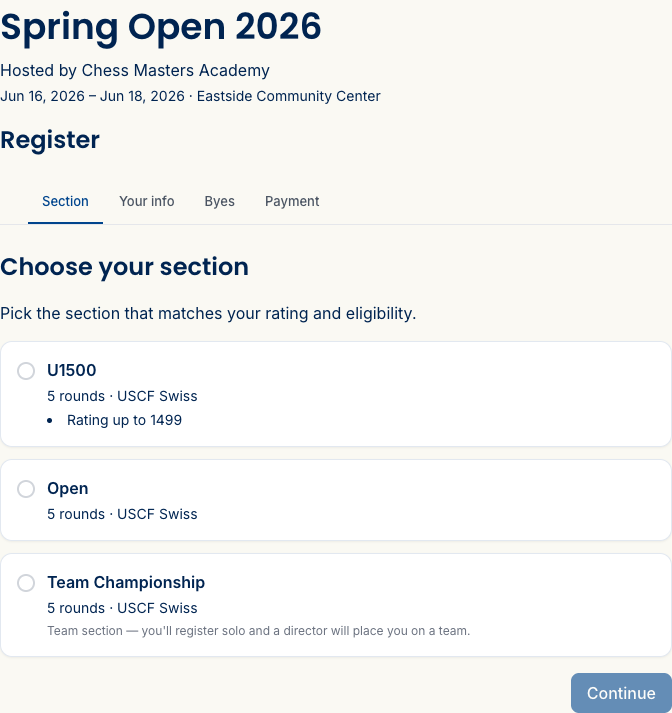
The organizer shares a link — on their site, in an email, on social. It opens straight to the tournament page; hit Register and choose your section. If the event has a rating-restricted section, you’ll see its ceiling (“Rating up to 1600”) right on the option.
Tell us who’s playing
If you’re not signed in, you’ll enter the player’s name and email, plus a USCF ID if the event is rated — the rating comes from that ID, so there’s no rating to type. Signed-in members with a complete profile skip this step; it’s already on file.
Registering your kids
If you have children linked to your account, the wizard adds a Registrant step listing each of them, plus “Myself” and an option to add a new child. Pick a child and their details carry through — you won’t re-type a thing, and the confirmation is addressed correctly to them, not to you.
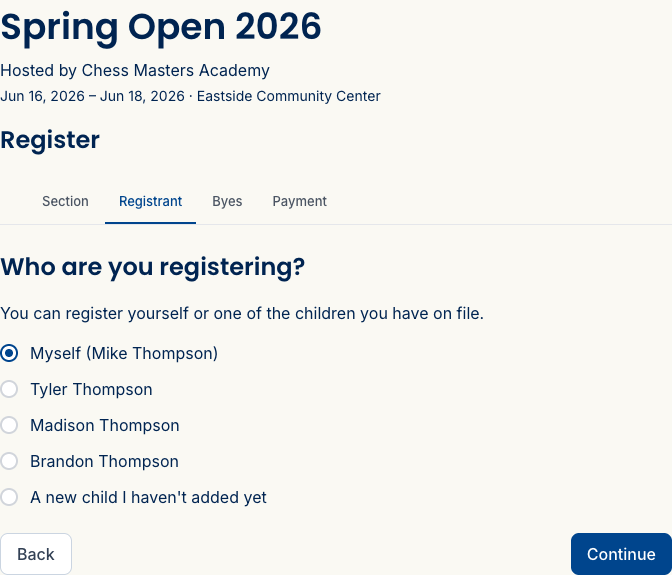
Registering more than one? After a child’s entry, Add another player sends you back to pick the next, and at the end Register & pay for all (N) checks everyone out together in a single payment.
Entering a team event — whole team or solo
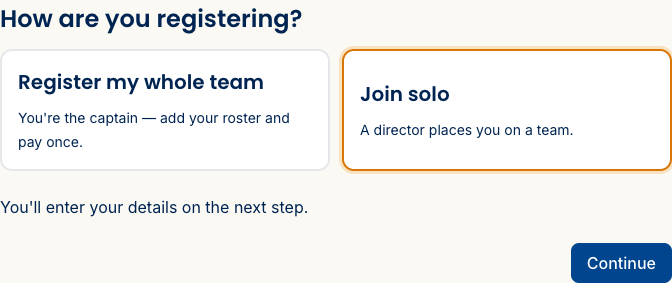
Picked a team section? The next step asks How are you registering? and gives you two ways in:
- Register my whole team — you’re the captain. Name the team, add your roster (alternates and incomplete teams are fine), and pay for everyone at once. More in Manage your team.
- Join solo — no team needed. You register just like any other entry, and a director places you on a team — as a starter or an alternate — before pairings go out. You’ll find out your team and board when the first round is posted.
Pay — however the organizer set it up
What checkout looks like depends on the payment method the organizer chose:
- Card (Stripe) — pay by card right here; you’re marked paid instantly.
- External link — you’ll be pointed to the organizer’s payment page.
- Pay at the door / by check — no card needed; you register now and settle up in person, and the director marks you paid.
A free event skips payment entirely and confirms you on the spot.
Byes and accessibility needs
If the organizer allowed byes for your section, you can request a half-point bye for a round you’ll miss — either during registration or later from your entry page, up to the bye deadline.
This same step is where you note any accessibility or seating needs. It’s always offered, whatever the event, and you can pick any that apply:
- Accessible / step-free table
- Near an exit
- Quiet / low-distraction area
- Large-print or raised board
There’s a free-text note too, if there’s something specific the director should know.
Here’s the part worth knowing: this isn’t just a message to the organizer. When the director pairs a round, Rook Ready automatically seats you at a physical table that meets your needs — it matches your board to a table the organizer has set up with the right facilities, and it prints on their pairing sheet. You don’t have to ask at the door, and you don’t have to ask again every round.
After you’re in
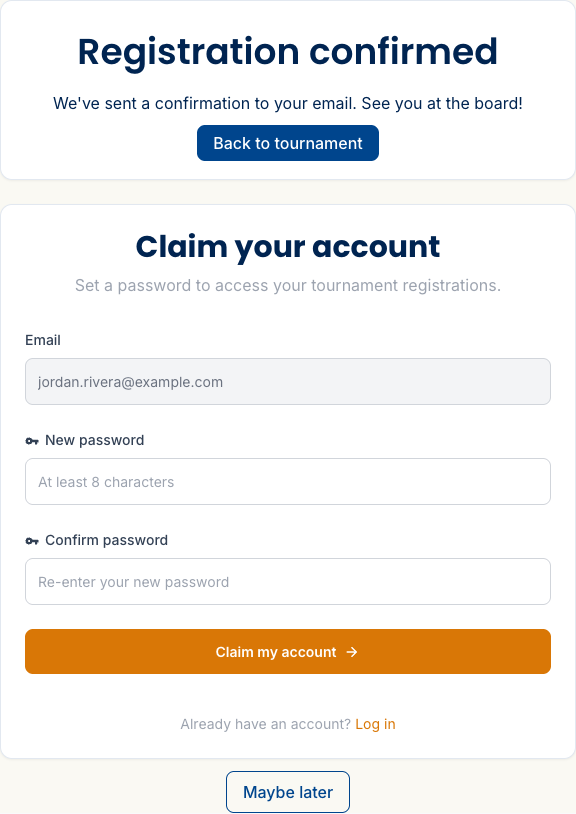
The moment you finish, a confirmation screen tells you you’re in and a copy lands in your inbox. If you registered as a guest, it also offers to claim your account right there — set a password and every entry is saved to you, so you can manage them without digging the link out of your email.
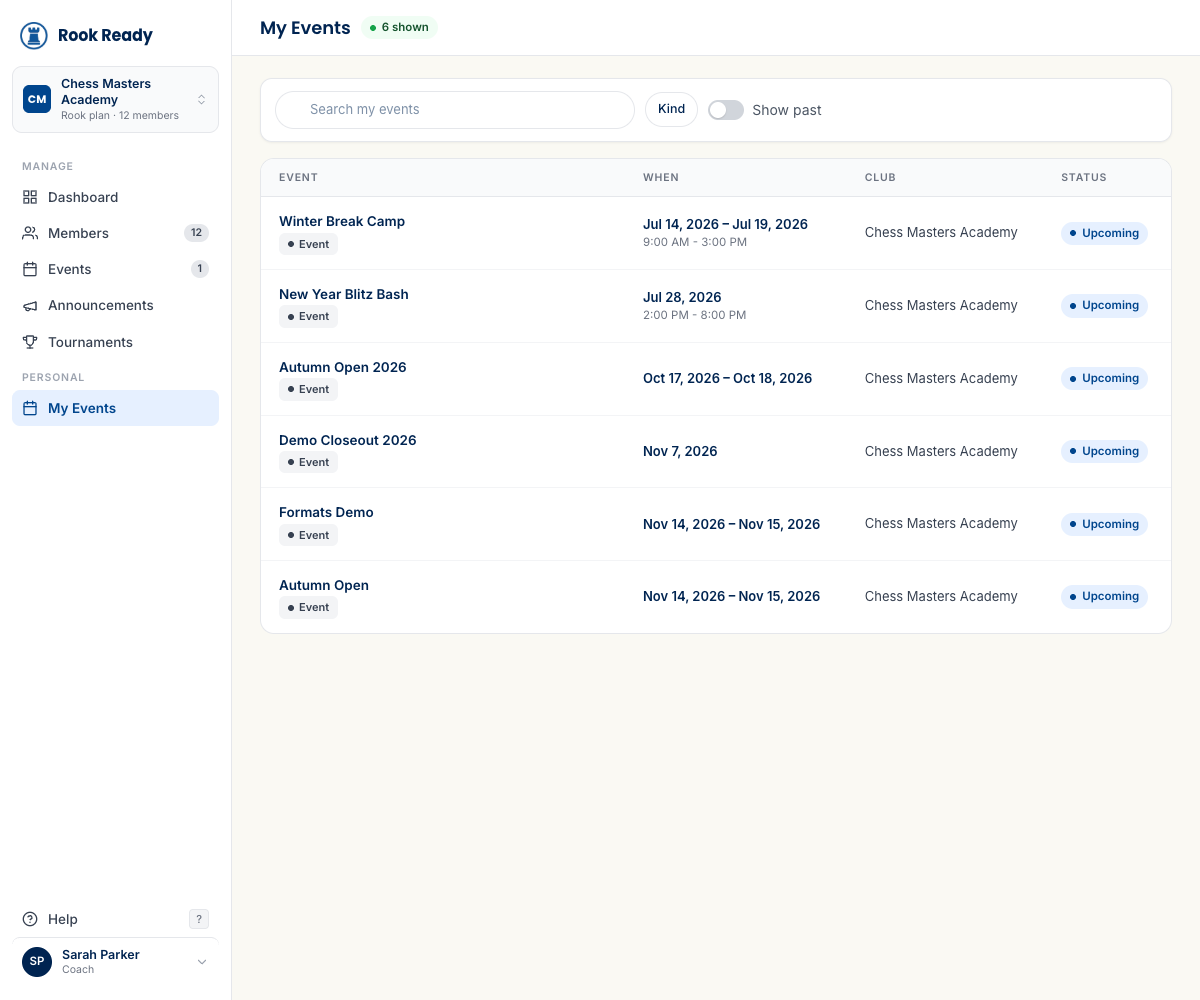
Everything you’ve signed up for lives on My Events — reach it from the sidebar,
or the old /me/tournaments link now lands there too. It’s one list across every
club, so a tournament you entered at a club you’ve never joined sits right next to
your home club’s events. Each row shows the event, when it is, which club runs it,
and whether it’s upcoming or live; search and a Kind filter narrow it down,
and Show past brings back finished events. If you registered kids, their entries
show here alongside yours, each opening to that player’s own entry page — their
games, and a link to the live standings once the event starts.
Staying in touch with the director
Once you’re entered, the director can reach you directly — a question about your USCF ID, a heads-up about your section — and you’ll see it as Messages from the TD on your entry page, where you can reply right back. It’s a real two-way thread tied to your entry (a guardian can handle it for a younger player), so a quick question doesn’t turn into a hunt for an email address.
Need to pull out? Open the entry and withdraw — that takes the player out of future pairings.
What’s next
- Follow the tournament — pairings, your games, and the live standings once play begins.
Stuck? The FAQ covers the common questions, or email support@rookready.com.
Updated July 13, 2026