

This is the setup half of running an event: everything between deciding to hold a tournament and the moment players can sign up. The build wizard walks you through it in a few minutes, and you can come back and adjust any of it before the doors open.
Start the build wizard
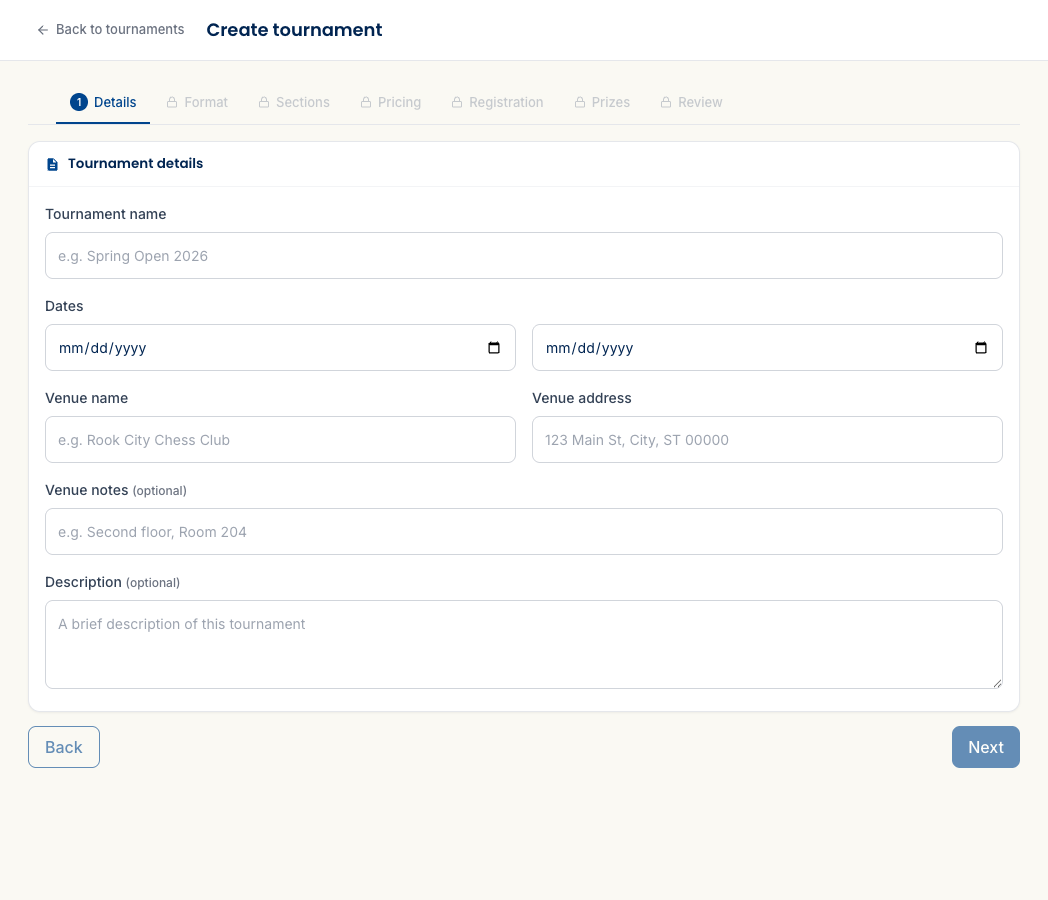
From the dashboard, Create tournament (or Tournaments → New tournament). The wizard walks Details → Format → Sections → Pricing → Registration → Prizes → Review, and you can step backward at any point. Details comes first — the tournament name and start/end dates, which unlock the rest.
Choose the format
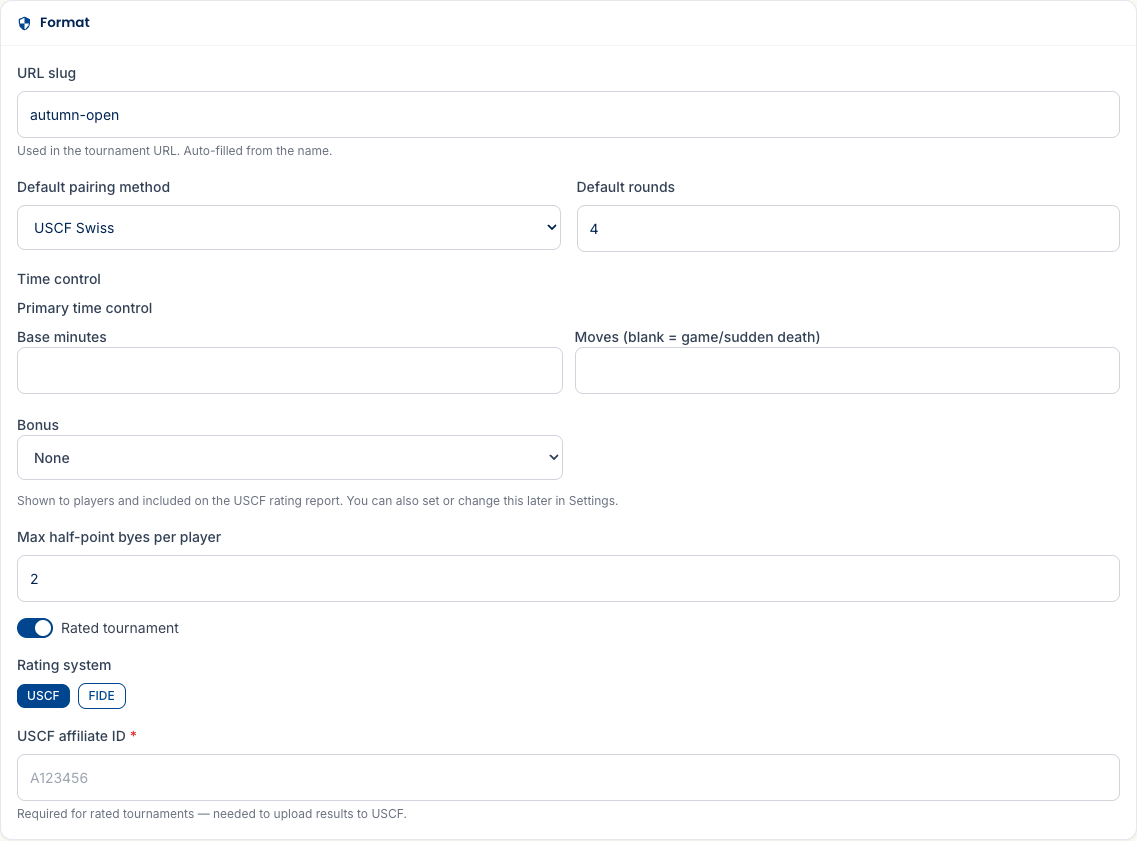
The Format step sets the defaults the whole event runs on:
- Rated or casual — turn Rated on for a USCF- or FIDE-rated event, off for a casual one. A rated event needs a USCF affiliate ID (required to upload results later), so have it handy.
- Pairing method and rounds — pick the default pairing system and number of rounds. The event-wide default is one of USCF Swiss, Double Swiss, Round Robin, Double Round Robin, or Quads — and any individual section can be set to those or Knockout (single-elimination) when you add it. So a mixed event, like a Swiss Open next to a knockout blitz side section, is no problem. Knockout adds its own extras (best-of-N matches and an automatic rapid → blitz → Armageddon tiebreak ladder); the formats guide walks through each method in depth.
- Time control — base minutes, an optional move count, and an increment or delay. It shows to players and rides along on the rating report (you can also change it later in Settings).
- Half-point byes — how many a player may request across the event.
Add your sections
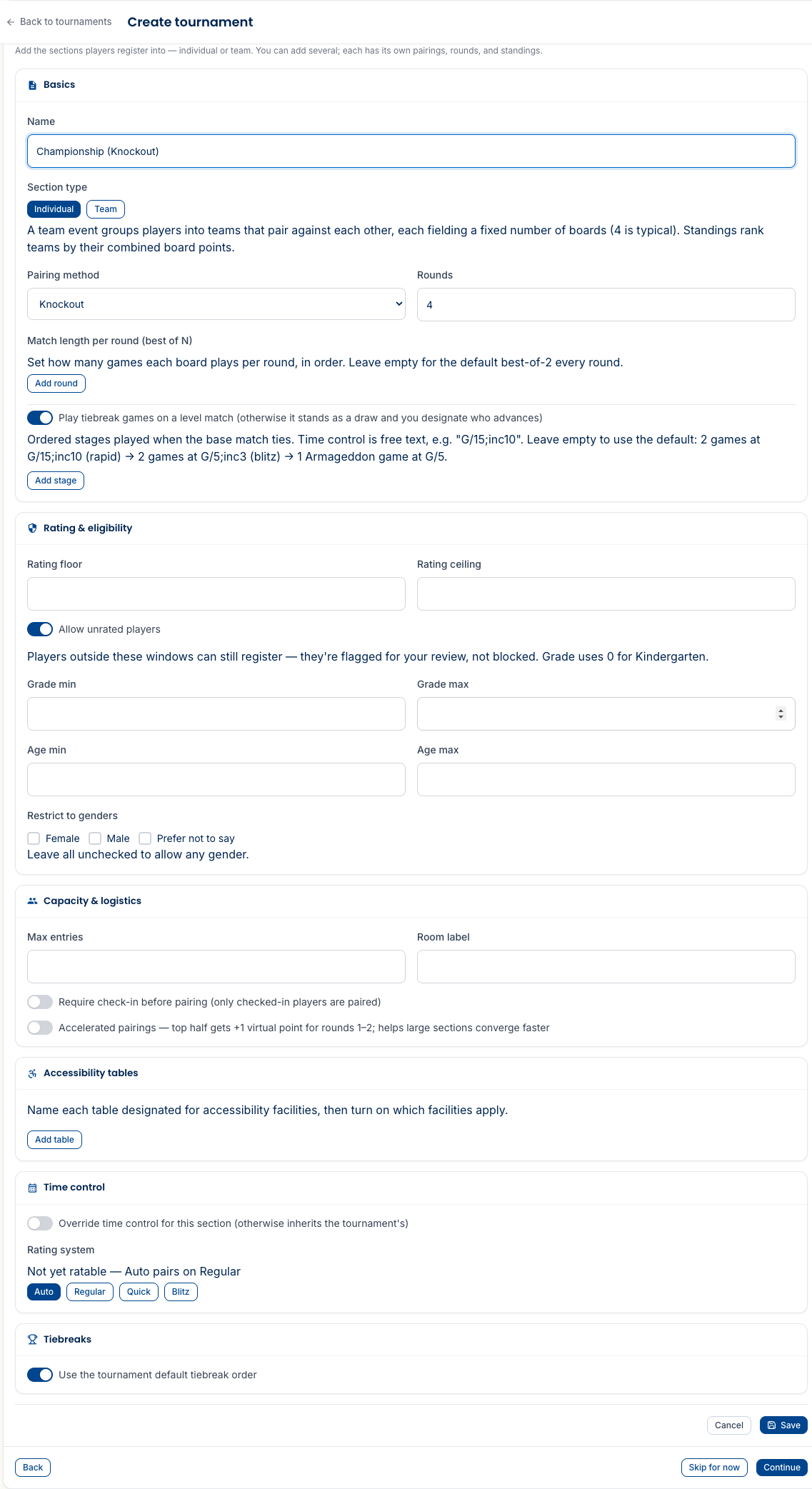
This is where a tournament takes its shape. Each section has its own pairings, rounds, and standings, and you can add as many as you need — an Open and a U1500 are simply two sections. For each one:
- Individual or team — an individual section, or a team section where players group into teams that pair against each other over a fixed number of boards (4 is typical) and standings rank teams by combined board points. (The team-event guide covers the team side in full.)
- Pairing method and rounds — any of the six methods, set per section and defaulting to what you chose in Format. This is where you’d make one section a knockout bracket while another stays Swiss.
- Rating system & seeding — each section runs under its own rating system (Regular, Quick, Blitz, or Dual), so a G/5 blitz section reports separately from a Regular Open. Seeding ranks players into the pairings by that rating — and you can override any single player’s seed by hand if you need to.
- Rating & eligibility — a rating floor and ceiling, grade and age windows, and an optional gender restriction. These define who the section is for: a ceiling shows publicly as “Rating up to 1600,” and players outside the window can still register — they’re flagged for your review, not blocked. Keep Allow unrated players on to welcome players without a rating.
- Capacity & logistics — an optional entry cap, a room label, whether players must check in before they’re paired, and accelerated pairings (a virtual point for the top half in the early rounds, which helps a large section settle faster).
- Accessibility tables — name the physical tables in your room that have accessibility facilities (step-free access, near an exit, a quiet corner, a large-print or raised board) and tick which facilities each one has. Do this once, and every round Rook Ready automatically seats players who requested those needs at a table that satisfies them — see running your event. It’s five minutes of setup that saves a conversation at the door every single round.
- Overrides — a section can keep its own time control or tiebreak order instead of inheriting the tournament’s.
The remaining steps — Pricing (next), Registration windows, optional Prizes, and a final Review — wrap up the wizard. Prizes can be scoped to a single section (a class or place prize) or run tournament-wide across every section (an overall champion), and they’re easier to set once you know who’s playing — the close-out guide covers them. Finishing lands you in the Tournament Director workspace, your home base for the event.
Price it, staff it, open it
The last stretch of the wizard — Pricing, Registration, Prizes, Review — is covered in its own guides so this one stays focused on structure:
- Entry fees and when people can sign up. Price tiers with early-bird windows, how players pay (card, offline, or a link), promo codes and refunds, and opening or closing registration — all in Pricing, payments & registration windows.
- The directors who’ll help you run it. You’re the chief TD by default; add assistants who can pair rounds and enter results, scoped to a section or the whole event — see Assign tournament directors.
Finishing the wizard lands you in the Tournament Director workspace, your home base for the event.
What’s next
- Pricing, payments & registration windows — set your entry fee and open the doors.
- Assign tournament directors — bring on assistants to help you run it.
- Run your event, round by round — pair, post, score, and handle the curveballs.
- Running a team event — if you added a team section, free agents and board order work a little differently.
Questions? The FAQ has answers, and support@rookready.com is always open.
Updated July 13, 2026