

If you’re captaining a team, you don’t need a Rook Ready account — you register your team from a public link and manage the roster from a private link the system hands you. This guide covers both, including how to invite your players to claim their own spots.
Register your team
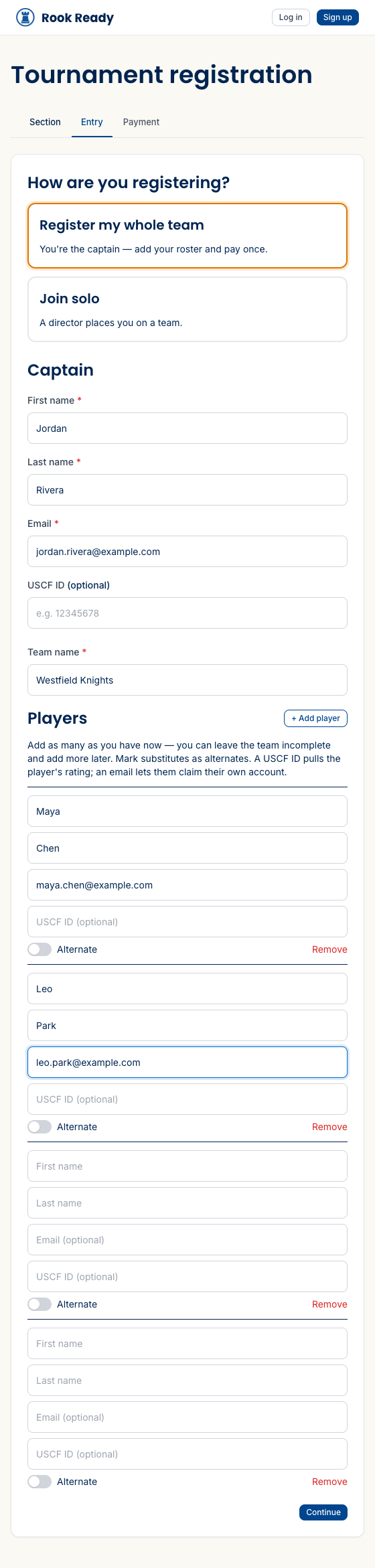
Open the team registration link the organizer shared — it lands on the registration form set to Register my whole team. Enter your own details as captain, then add each player by board.
Each player row takes a first and last name plus two optional — but worth it — fields: a USCF ID (pulls the player’s rating so the director can seed the boards correctly) and an email. The email is the good part: add it and you can invite that player to claim their own account for the spot, so their details and results are theirs. (More on that below.) Got a bench player? Flip the Alternate toggle on their row instead of giving them a board.
Save your manage link
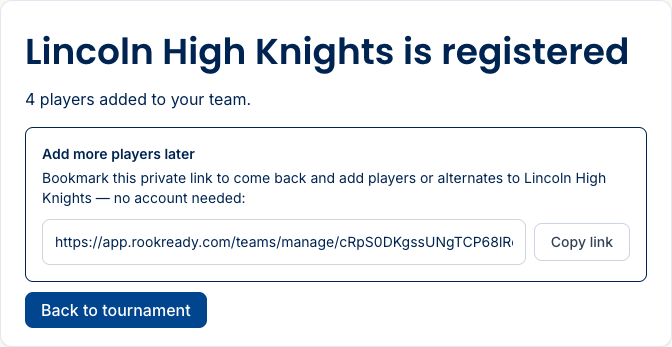
When your team is registered, the confirmation page hands you a private manage link. Hit Copy link and save it — bookmark it, email it to yourself, whatever works. It’s how you get back to your roster, and it needs no password.
Fix your roster any time
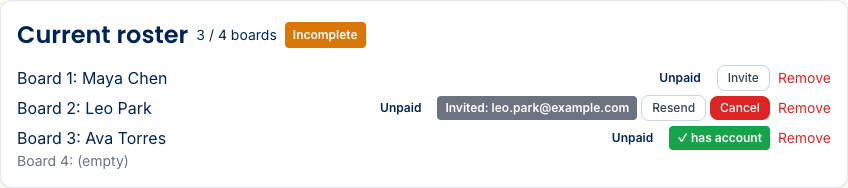
Open your manage link to see your current roster and board count, add players as your lineup firms up, and invite players to claim their spots (next section).
Invite a player to claim their spot
Rostering a player by name puts them on a board — but if you add their email, you can invite them to claim the spot themselves. On your manage link, every not-yet-claimed player has an Invite button. Click it, confirm the email (it’s pre-filled if you already added one), and hit Send. The player gets a link to create or link their own Rook Ready account to that exact roster slot.
Claiming doesn’t bump anyone off your roster or change their board — it just means the player’s account, rating, and results become their own. For a younger player, a parent or guardian can claim on their behalf. Once someone’s claimed, their row shows a has account badge, so you can see at a glance who’s set. Still waiting on a player? Resend the invite or Cancel it — you stay in control, with one pending invite per player.
A note on board order
USCF team rules seat players strongest-first — board 1 is your highest-rated player. The director sets and sorts the board order by rating on their end, so if your boards don’t look the way you expect, that’s usually why. Make sure the director has each player’s rating (or USCF ID) and check in with them.
What’s next
- Follow the tournament — once play starts, track your team’s pairings and the live team standings.
- For organizers: run a team event — how teams, boards, and standings work on the director’s side.
Questions? The FAQ and support@rookready.com are here for you.
Updated July 13, 2026