
Once your tournament and its sections exist (that’s Set up a tournament), two money-and-timing decisions decide how players get in the door: what they pay and when they can sign up. Both are quick, and both are yours to change right up until registration opens.
Set your entry fee
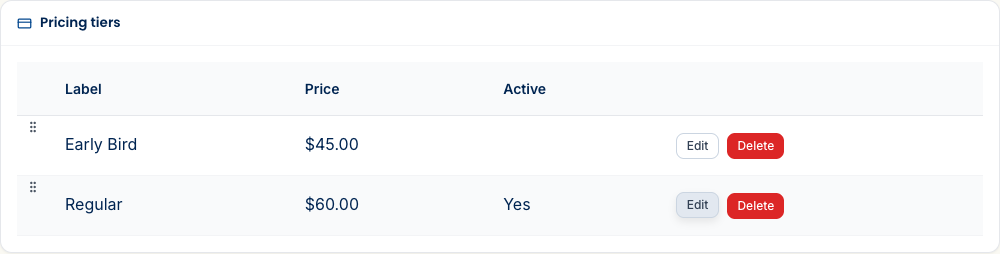
Your price is a set of tiers under Settings → Pricing. Each tier has a label, an amount, and an opens/closes window — which is exactly how you do early-bird pricing: an “Early Bird” tier at $45 that closes on a date, and a “Regular” tier at $60 that takes over automatically. Drag to reorder them. The active tier is the one whose window is current. A $0 tier makes the event free and skips checkout entirely.
Choose how players pay
Separate from the price is how players pay it. You pick this on the Pricing step of the build wizard (and can change it later under Settings → General → Payments). You’re not locked into one processor:
- Online card payment (Stripe) — players pay by card at checkout and are marked paid automatically.
- Offline — pay at the door / by check — players register now and pay you in person; you mark them paid on the roster.
- External payment link — point players at your own payment page; you mark them paid once it clears.

Open — and close — registration
When the details are right, open registration (the Registration step of the wizard, or the status control on Settings → General). Players can now find the event and sign up — share the registration link from the workspace to get the word out.
What’s next
- Set up a tournament — the sections and format these prices attach to.
- Assign your directors — hand off pairing and result-entry to an assistant.
- What players see when they enter — the other side of the checkout you just set up.
Questions? The FAQ has answers, and support@rookready.com is always open.
Updated July 13, 2026